0

Microsoft Answers for Windows Live

Stuck in a problem while working on your windows…or some plug-in is giving you a trouble or you need to set some functionality on or off…

If you are yelling SOS and no one is here then you can get help on Microsoft Answers Windows live site.

msans

Experienced people like MVP’s,Certified people would be there to help you.You can post your problem or querry in the community and these people will try to give you the best solution.Also you too can voluntarily take part and help others in solving their problems.


msans - a


0

Windows Application Compatibility Mode

Windows Vista onwards Compatibility mode is provided in applications.  Compatibility mode allows a older application compatible for an earlier versions of Windows to possibly run in Windows 7.It runs the program using settings from a previous version of Windows.Changing the compatibility mode solves the problem most of the time which is generally crashing of an application while executing it on a newer Windows.Even If changing the Compatibility settings does not fix the problem,you need to check for an update for that application at the manufacturer's website.
1.Right click on the program's shortcut, Application file, or installation program.
2.Click on Properties.It will show properties of that application with few tabs.cm1
3.Click on the Compatibility tab.
4. To Run a Program in Compatibility Mode you can select compatibility mode for a previous version of Windows.Choose the one this program works well on or the one you believe this program runs well on.
5.Check the Run this program in compatibility mode Check box.
6.Now Click on the drop down menu and select which version of Windows the program was made for.

cm3
7.Few more settings can be Changed to make the application more compatible.Checking the checkbox enables that particular setting.These settings are:
Run in 256 colors
Run in 640 × 480 screen resolution
Disable visual themes 
Disable desktop composition 
Disable display scaling on high DPI settings
8. Click OK to apply the changes.

 cm2 

It is recommended that Compatibility mode must not be used with system applications like system drivers or antivirus as that may cause losses & risks to your data.


0

Windows 7: Jump lists Customization

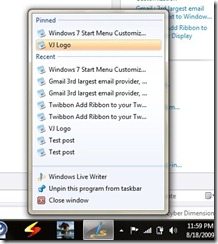
Windows 7 comes with a very handy feature called Jumplist. This feature shows a list of related tasks & Recent documents of a process or shortcut icon which is in taskbar. You can view & customize it easily.
1. Right click on any icon in the taskbar.
2. It will show a list of related tasks to that application as well, Number of recent applications.
jl
3. If there is a shortcut you wish to see every time you open the Jump list of that application you can pin that as well to Jump list.
Say for Windows Media Player you have recent shortcut of a movie and you wish it to appear permanently then you can pin it to the jump list.

sb1

4. You can also customize number of Recent Items in Jump list.
    a. right click on Start Button or taskbar (Super bar) of Windows 7
    b.Click on properties. It will pop up Taskbar & start Menu properties.
    c.Select the tab 'startMenu'.This will bring you Customize & Privacy options.
    d.Select Customize button there.
    e.Select Number of items in Jumplist from 10 to number you wish to.

sb3

5. Also you can choose default settings if you wish to undo all the changes you have done.


0

Windows 7: Start Menu Customization

Start Menu in Windows 7 can be customized according to user’s need. All the items in Start menu can either be set as display link or set as menu. Apart from it there are several more things to configure.
Steps are here:
1. Right click on Start Button or taskbar (Super bar) of Windows 7
2. Click on properties. It will pop up Taskbar & start Menu properties.

sb1
3. Select the tab 'Start Menu’. This will bring you Customize & Privacy options.
4. Select Customize button there.

sb2
5. You can select the behavior of items in Start Menu. If you want them to behave as link, Menu or Icon.
6. Behaviour of items like my computer, Downloads etc can be set.
7. Also you can choose default settings if you wish to undo all the changes you have done.
8.Click OK to apply the changes.


0

Gmail : 3rd largest email provider, next to Windows Live & Yahoo

According to ComScore, a marketing research company, Gmail is now the third largest email provider in the United States.Gmail grew a remarkable 46 percent, from 25.3 million to 36.9 million users. Gmail is now on pace to overtake Windows Live Hotmail, at 47.1 million users, in around seven months.Yahoo Mail continues to lead the pack when it comes to U.S. email providers with 106.1 million visitors last month.

via Neowin

Page Navigation

IndiBlogger Rank

Hit Stats

About Me

My photo
Technology Lover & an IT Professional.

Twitter

http://www.twitterbuttons.com

MeraWindows

Delhi IT Pro

Delhi Devs

IndiBlogger

IE8

IP Address

Friends

AskVG.com
winspark unlockWindows.com techsurface.com

Copyright © 2009-2010 CyberDimensions | Theme Designed by TheBuckmaker | Re-Designed by: Vasu Jain | Home Page Image : Microsoft Windows 7 . | Theme Distributed by Mumbai Mania