0

Prevent Windows 7 from Automatically Rebooting after Installing Windows Updates

1

Windows updates force the OS to shut down after they install.This can be troublesome many a times when you dont want to restart your PC because of some work which is ongoing.So here is how to get rid of Reboot of Windows after Windows update Installation.To prevent Rebooting a registry tweak must be done.Here are the steps:

1. Click start Orb
2.Go to Run & type regedit.

3. In regedit, navigate to :
HKEY_LOCAL_MACHINE\SOFTWARE\Polices\Microsoft\Windows
4. In the left pane, right click on Windows, and click on New Key, then type WindowsUpdate

s2s3

5. In the left pane, right click on WindowsUpdate, and click on New Key, then type AU
6. In the right pane of AU, right click anywhere and select New DWORD 32-bit Value, then type in NoAutoRebootWithLoggedOnUsers.
7. Right click NoAutoRebootWithLoggedOnUsers & click Modify, then type its value as 1 and press enter.

s4

8. Close regedit.
9. Restart the computer.


Now Windows wont restart once you install updates.


0

Windows Application Compatibility Mode

Windows Vista onwards Compatibility mode is provided in applications.  Compatibility mode allows a older application compatible for an earlier versions of Windows to possibly run in Windows 7.It runs the program using settings from a previous version of Windows.Changing the compatibility mode solves the problem most of the time which is generally crashing of an application while executing it on a newer Windows.Even If changing the Compatibility settings does not fix the problem,you need to check for an update for that application at the manufacturer's website.
1.Right click on the program's shortcut, Application file, or installation program.
2.Click on Properties.It will show properties of that application with few tabs.cm1
3.Click on the Compatibility tab.
4. To Run a Program in Compatibility Mode you can select compatibility mode for a previous version of Windows.Choose the one this program works well on or the one you believe this program runs well on.
5.Check the Run this program in compatibility mode Check box.
6.Now Click on the drop down menu and select which version of Windows the program was made for.

cm3
7.Few more settings can be Changed to make the application more compatible.Checking the checkbox enables that particular setting.These settings are:
Run in 256 colors
Run in 640 × 480 screen resolution
Disable visual themes 
Disable desktop composition 
Disable display scaling on high DPI settings
8. Click OK to apply the changes.

 cm2 

It is recommended that Compatibility mode must not be used with system applications like system drivers or antivirus as that may cause losses & risks to your data.


0

Windows 7: Jump lists Customization

Windows 7 comes with a very handy feature called Jumplist. This feature shows a list of related tasks & Recent documents of a process or shortcut icon which is in taskbar. You can view & customize it easily.
1. Right click on any icon in the taskbar.
2. It will show a list of related tasks to that application as well, Number of recent applications.

jl
3. If there is a shortcut you wish to see every time you open the Jump list of that application you can pin that as well to Jump list.
Say for Windows Media Player you have recent shortcut of a movie and you wish it to appear permanently then you can pin it to the jump list.

sb1

4. You can also customize number of Recent Items in Jump list.
    a. right click on Start Button or taskbar (Super bar) of Windows 7
    b.Click on properties. It will pop up Taskbar & start Menu properties.
    c.Select the tab 'startMenu'.This will bring you Customize & Privacy options.
    d.Select Customize button there.
    e.Select Number of items in Jumplist from 10 to number you wish to.

sb3

5. Also you can choose default settings if you wish to undo all the changes you have done.


0

Windows 7: Start Menu Customization

Start Menu in Windows 7 can be customized according to user’s need. All the items in Start menu can either be set as display link or set as menu. Apart from it there are several more things to configure.
Steps are here:
1. Right click on Start Button or taskbar (Super bar) of Windows 7
2. Click on properties. It will pop up Taskbar & start Menu properties.

sb1
3. Select the tab 'Start Menu’. This will bring you Customize & Privacy options.
4. Select Customize button there.

sb2
5. You can select the behavior of items in Start Menu. If you want them to behave as link, Menu or Icon.
6. Behaviour of items like my computer, Downloads etc can be set.
7. Also you can choose default settings if you wish to undo all the changes you have done.
8.Click OK to apply the changes.


0

Windows 7 RTM New User Account Pictures


You can find new User Account pictures in Windows 7 RTM.Here is the link to access them

and also given the screenshot which shows all of the New Pictures added.
You can copy these in Vista here : C:\ProgramData\Microsoft\User Account Pictures\Default Pictures to have them in your Windows Vista User Account


0

User Account pictures in Windows 7

[windows7.png]
You can find the default pictures of Windows 7 user Account in a hidden folder,path given below.Also you can find Admin & guest account picture here.
  • The default Pictures are located in the hidden C:\ProgramData\Microsoft\User Account Pictures\Default Pictures folder.
  • The default Standard and administrator account picture is the hidden C:\ProgramData\Microsoft\User Account Pictures\user.bmp file.
  • The default Guest account picture is the hidden C:\ProgramData\Microsoft\User Account Pictures\guest.bmp file.
If you wish to change these simply replace them with another file up to 128 x 128 pixels in size to prevent it from being automatically cropped to fit the user picture display box.


0

Pop Up message when Windows Boots


When a user gets logon You might want to have a message pop up to display a Welcome message. This can be used to display Instructions,Company Policy,User related information,any alert,warning or anything you wish to do .

Here is the procedure .Open registry by typing regedit in the Run box.Now navigate here.

Navigate to:
HLM\SOFTWARE\Microsoft\WindowsNT\CurrentVersion\WinLogon

Create a new String Value here called LegalNoticeCaption. Enter whatever messag you want to see in the Title bar of the message that you wish to pop up. Now create another new String Value called LegalNoticeText. Modify it to the message you want to display each time Windows boots.The message will be displayed at the next logon.

This trick works with Windows 7 as well.


0

Set Bing Background as Wallpaper & Rotate it

Daily homepage photos of Bing can be downloaded and used as a wallpaper for your computer that refreshes as soon as it refreshes over Bing.By using the code below, you can create a live daily updating bing theme.Long Zheng from www.istartedsomething.com & makeuseof.com helped get the code which can make the Bing Theme that uses Bing background as a daily wallpaper.

To create the theme, 1st copy and paste the code below in notepad and save it as "Bing.theme"

[[Theme]
DisplayName=Bing
[Slideshow]
Interval=1800000
Shuffle=1
RssFeed=http://feeds.feedburner.com/bingimages
[Control Panel\Desktop]
TileWallpaper=0
WallpaperStyle=0
Pattern=
[Control Panel\Cursors]
AppStarting=%SystemRoot%\cursors\aero_working.ani
Arrow=%SystemRoot%\cursors\aero_arrow.cur
Crosshair=
Hand=%SystemRoot%\cursors\aero_link.cur
Help=%SystemRoot%\cursors\aero_helpsel.cur
IBeam=
No=%SystemRoot%\cursors\aero_unavail.cur
NWPen=%SystemRoot%\cursors\aero_pen.cur
SizeAll=%SystemRoot%\cursors\aero_move.cur
SizeNESW=%SystemRoot%\cursors\aero_nesw.cur
SizeNS=%SystemRoot%\cursors\aero_ns.cur
SizeNWSE=%SystemRoot%\cursors\aero_nwse.cur
SizeWE=%SystemRoot%\cursors\aero_ew.cur
UpArrow=%SystemRoot%\cursors\aero_up.cur
Wait=%SystemRoot%\cursors\aero_busy.ani
DefaultValue=Windows Aero
Link=
[VisualStyles]
Path=%SystemRoot%\resources\themes\Aero\Aero.msstyles
ColorStyle=NormalColor
Size=NormalSize
ColorizationColor=0X6B74B8FC
Transparency=1
[MasterThemeSelector]
MTSM=DABJDKT

After you save it, just double click on the theme. file and make sure you select "download attachments" in the pop-up window.
That's it, your bing theme should be good to go. To make sure the photos look their best, select the "Fit" option in the desktop background settings


0

Get Vista like taskbar in Windows 7

New to windows 7? Aint able to go along with it smoothly?
Well here is an option that you can follow to get the Taskbar icons as
the same we had in Vista.In Vista when ever we minimized an
application (folder,word etc) it is accessed by a tab @ taskbar which
describes about process and has a icon as well.But in Windows 7 this
thing has been replaced by an Icon so you cant get any text over
there.
To get back the similar feel in Windows 7 do the following:

Navigate to taskbar & Right Click it.
Open taskbar properties.
Go to option taskbar Buttons.
Here you have 3 options : hidelabels,combine ,never combine
Choose the third one.

It would restore the Taskbar buttons like they were used to be in VIsta.


0

New Mail Hyperlink feature in Firefox 3.5

It is very common that we have hyperlink that redirects to mailbox of
a person, on many a webpages.Say you have a website for Transport,the
admin must have given a hotlink that when clicked redirects to mail of
that person.Till now the default client for opening a webmail from the
browser was Outlook only.Using some external application like yattach
or gattach could have changed the things as well or changing setting
in Internet options.But for laymen it wasnt a very easy and
comfortable aspect.
With tha Firefox 3.5 the feature which has been embedded in the
browser is that whenever we click on mail hyperlink there pops a
window with options to choose the mail client for the operation
concerned.You can choose from Outlook,Gmail,Yahoomail or you can
choose some other application for mail operations.
Nice Feature i must say.


0

Force all folders to Unhide : Pst virus attack counter measures

Many of us have experienced attack of viruses someday or other.I too
recently experienced one and it was the worst one in last 5 years i
have faced.Nod32 never disappointed me but dont know what happened
this time.My lapy as well as Deski both started showing the
symptoms.although there wasnt any potential harm but all folders had a
Folder 'MSOCACHE' and all folders were hidden too.
Using MSE Beta removed the virus completly but still i wasnt able to
change the hidden folders to Unhidden one.After a lot of Querries &
Binging,Googling i finally found solution from a Freind who is a MVP
as well,Ramesh Kumar.
There is a command that is used to force all folders attribute to unhidden.
Here are the steps:
Simply Go to Run
type 'CMD'
press Enter
Type this command "attrib -h -s -a -r * /s /d"
And you are done.


0

Back up your Blogspot Blog

http://www.castiron.com/images/news/blogspot.gif

There's an easy way to backup your blog.This link the last N number of posts from the blog:
http://blogname.blogspot.com/search?max-results=N
Instead of N, type the number of posts. If your blog has less than 1000 posts, you can save this page:
http://blogname.blogspot.com/search?max-results=1000
this will have a single page which has all the posts (1000 in this case)....
Simply save that page and your Posts Backup is there.

For all the images hosted on your blog you may use a firefox extension DownThemAll . It lets you download all the files with a certain extension from the current page, you can very easily save your blog Images.

All posts can be saved in an XML feed as well. This is a clean & better format if you intend to import it in a database.Link to save images as XML feed:
http://blogname.blogspot.com/feeds/posts/default?max-results=1000

For the exact number of posts , it can be easily obtained from the dashboard.
http://www.blogger.com/home


Use of Keyboard Shortcuts with Windows Logo Key

This Windows Logo Key is getting more and more use on Windows and its application. And it gets utilized even much more in Windows 7. Almost each function and new feature in Windows 7 have the keyboard shortcuts alternative that does the same thing, a lot of which are the combination of Windows Logo Key and the letters. Here are numbers of use in Windows 7 that are quite commonly used.

Windows logo key Picture of Windows logo key + U

Open the Ease of Access Center

Windows logo key Picture of Windows logo key + Tab

Aero 3D program flipper

Windows logo key Picture of Windows logo key + Pause

Display System Properties dialog box

Windows logo key Picture of Windows logo key + D

Display Desktop

Windows logo key Picture of Windows logo key + M

Minimize all windows

Windows logo key Picture of Windows logo key + E

Open Windows Explorer

Windows logo key Picture of Windows logo key + F

Search for a file or folder

Windows logo key Picture of Windows logo key + L

Lock the computer

Windows logo key Picture of Windows logo key + R

Open the Run dialog box

Windows logo key Picture of Windows logo key + T

Cycle through programs on the taskbar

see more Tricks @ Windows7Hacker


0

Retrieve Built Details & other Information of Windows Installed

Often Techies feel to have the Built number of OS they r using.Like I felt .Few OS versions have this info at the Desktop screen like Windows 7 Beta,RC had but few dont have .To find out these details and much more info like product edition, build number and revision number for Windows Vista,Windows Server 2008,Windows 7 that is installed, follow these steps:

  • Open Registry Editor by typing Regedit in Start Search, then hit Enter.
  • Go to the following registry key: HKEY_LOCAL_MACHINE\Software\Microsoft\Windows NT\CurrentVersion
  • In the right side pane, you will see lots of registry subkeys and its value date. These keys will give you the required information about your OS.....

  1. ProductName : of Windows
  2. EditionID : edition aka flavour of the OS.
  3. BuildLabEx: Contains build and revision number
  4. Current Build : contains build number
  5. Registered Owner
  6. Registered Organization
Windows Vista & 7 would require Admin priv. to open Registry Editor


0

How to download files from Rapidshare without waiting

rapiddownloader

Rapidshare is one the most known websites in the Internet where users can upload and download tons of files without any program and without staying on queue for a long time. (Waiting a lot of time is a thing which is well-known to clients for the ED2K and de-centralized Kad networks such E-mule). If you still want to improve the way you download files from Rapidshare because you don’t want to wait for the resources to be available (the famous countdown) or because you want to download more than 1 file, here is a freeware solution for you.

Rapidshare Auto Download is a nice, free download manager for the Rapidshare website. Here is a list of its most important features:

  • Download a group of links from Rapidshare (one by one).
  • Download incomplete downloads until all links are downloaded.
  • Auto Shutdown.
  • Support of 3 Languages : English , Farsi , French.
  • No more wait for the link to be generated!
  • Versatile schedule for your downloads.

If you want to know more, or if you just want to download it, visit the official website.


0

How to backup your Twitter account

tweetbackup

Twitter is becoming increasingly popular lately. A lot of people are using it, including bloggers, webmasters and…celebrities! This free social messaging utility letting you blog in just 140 characters is really changing the way we look at Internet, turning normal people to influencing experts able to affect millions of people! But what can you do to save your private data contained in your Tweets so that if something happens to the website you will be sure to loose nothing? Here is a nice, freeware solution able to backup your Twitter account and your Tweet of course, in a couple of minutes! Continue reading »


0

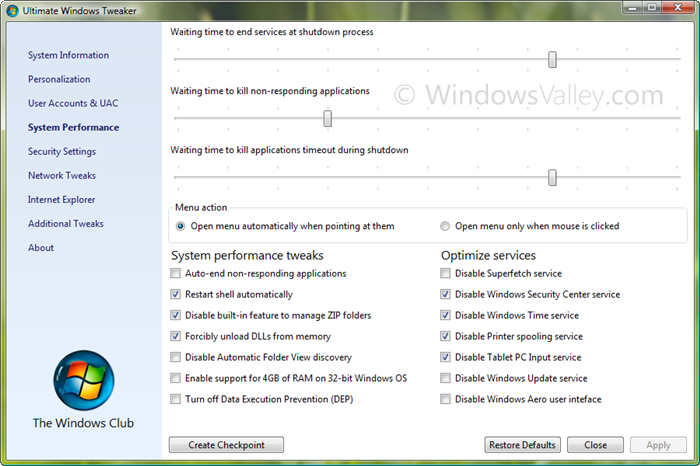
Download Ultimate Windows Tweaker v2.0 for Windows 7

Our Friend Ramesh Kumar (WindowsaValley.com) released Ultimate Windows Tweaker v2.0 . It is a freeware Tweak UI Utility for tweaking and optimizing Windows 7 & Windows Vista, all editions. You can simply download and use as a portable application. With judicious tweaking, it makes your system faster, more stable, and more secure with just a few mouse clicks.

It is a 345KB executable, that doesn’t require installation and can be carried out in USB removable device/pen drive. This time, it covers more than 150 tweaks and settings.

Ultimate Windows Tweaker v2.0

Download


0

Find Windows 7 Keys for all Versions

So you missed your activation CD Key for windows 7 and still clueless about that.
You can find it easily without registering for the Windows 7 DVD again and searching over the net.
Infact you can find the cd key of this version as well as few other versions of the Windows 7...
Here is how to get through it....
1.Extract the Windows 7 ISO.Its a tough one cause its a UDF Format and you would be requiring external software like CDExtractor or ISoBuster to do the workk.
2.In the DVD root folder there is a folder sources....open it....
3.Find a configuration file product.ini
4. open this file
5.Scroll till the end and you can find number of Various keys for versions like ultimate,professional,starter and many more....
Windows Vista RTM keys also do work with this as well as of Windows Server 2008 with the build 7100.


0

Windows 7 removing Registry Key Effects specific 2 Win7

Removing shortcut icon arrow is one of the easiest and most needed hack for a starter geek for Windows.

Removing it via registry is a simple trik..goto lnkfile-->del isshortcut key.

this thing was ok till Win Vista. but if you delete this key in Windows 7 .... there may be occasional error where user cannot drag and drop an application program to Windows Taskbar (Superbar) and Start Menu anymore, with the icon shows a red cross when user attempts to place it on Taskbar or Start Menu. When right click on a program icon or shortcut, the “Pin to Taskbar” and “Pin to Start Menu” context menu is missing and not showing too.

You may also find an error that no Jump List been popped up when right clicking on icons in Taskbar.

Infact you may also find an error http://www.merawindows.com/Forums/tabid/324/forumid/96/threadid/42169/scope/posts/Default.aspx

i tried to figure out a lot about the solution.infact i even reinstalled os..(tx 2 win7 it took hardly half hour 2 get evrthng back 2 normal)....and 2day i found that the same problem has rose again...

and then after some r n d i found the cause of the problem.

So following are the effects of deleting Regsitry key "isshortcut" in windows 7.

if u wana restore 2 all normal...simple add the isshortcut(new string) in the .lnk file...this will get back all things 2 work...

Windows Registry Editor Version 5.00

[HKEY_CLASSES_ROOT\lnkfile]
@=”Shortcut”
“IsShortcut”=”"

or paste the abve code in bold in a text file and save it as .reg and then execute that.

n 4 tech guyz still u wana remove the thingy??

use the following code...

Windows Registry Editor Version 5.00

[HKEY_LOCAL_MACHINE\SOFTWARE\Microsoft\Windows\CurrentVersion\Explorer\Shell Icons]
"29"=hex(2):25,00,73,00,79,00,73,00,74,00,65,00,6d,00,72,00,6f,00,6f,00,74,00,\
25,00,5c,00,73,00,79,00,73,00,74,00,65,00,6d,00,33,00,32,00,5c,00,73,00,68,\
00,65,00,6c,00,6c,00,33,00,32,00,2e,00,64,00,6c,00,6c,00,2c,00,35,00,30,00,\
00,00

this will fade the shortcut arrow and make it transparent.this way also works out.

Well ques can b....is it a bug or a feature in Windows 7...being it specific 2 only windows 7...???


0

Add Watermark effect to images online using Watermark tools

Watermark Tool is the free online watermarking software that allows you to add watermark effect to your images quickly and easily. You can also personalize your images in a variety of ways - including text size, color, and position.

logo

For people with photoshop, illustrator, or other advanced graphical software, applying watermarks isn't very difficult. However, many people don't have these kinds of tools, which means that their images can't be photoshopped without more advanced computer knowledge and extra hassle. With this website, anybody can apply personalized watermarks quickly and without needing to know anything about graphic manipulating software. Even people with advanced graphical know-how will probably find that this site's process to be a quicker and easier solution than opening Photoshop and creating a watermark from scratch.

visit: http://www.watermarktool.com/

Source: TechSurface

Page Navigation

IndiBlogger Rank

Hit Stats

About Me

My photo
Technology Lover & an IT Professional.

Twitter

http://www.twitterbuttons.com

MeraWindows

Delhi IT Pro

Delhi Devs

IndiBlogger

IE8

IP Address

Friends

AskVG.com
winspark unlockWindows.com techsurface.com

Copyright © 2009-2010 CyberDimensions | Theme Designed by TheBuckmaker | Re-Designed by: Vasu Jain | Home Page Image : Microsoft Windows 7 . | Theme Distributed by Mumbai Mania